01 / Get started
Three steps to your first song.
- 01
Put music in Files.
Use a folder on your iPhone, in iCloud Drive, or in another Files location you can select. If you downloaded a ZIP album, unzip it in Files first. Need something to try? Download our original demo tracks and keep them together in one folder.
- 02
Add that folder.
Open NITELOAD, go to Folders, tap + or ADD FOLDER, and choose the folder in the Files picker. NITELOAD scans its music and remembers the selected location.
- 03
Press play.
Tap a track, or choose a sort order and tap PLAY ALL. The player opens with your queue and visualizer ready.
Your audio stays where you put it. Adding a folder gives NITELOAD access to play it; it does not move or upload your music.
02 / Folders & artwork
Keep the collection you already made.
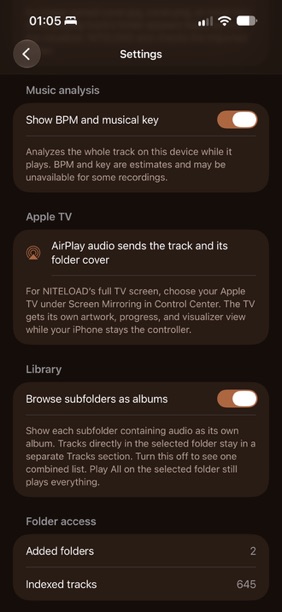
By default, music subfolders appear as separate albums. Tracks sitting directly in the folder you added appear in their own Tracks section. Open an album, then tap a track or PLAY ALL to play just that album. PLAY ALL on the parent folder includes everything inside it. Prefer one long list? Turn off Browse subfolders as albums in Settings.
To change the order, tap SORT ORDER inside a folder. You can sort by track title, filename, date, duration, or disc and track number. PLAY ALL follows the order you choose.
Put a JPEG, PNG, or HEIC image named cover, folder, front, or albumart beside its music. NITELOAD can also use artwork embedded in the tracks. The image appears on folder and album rows when available.
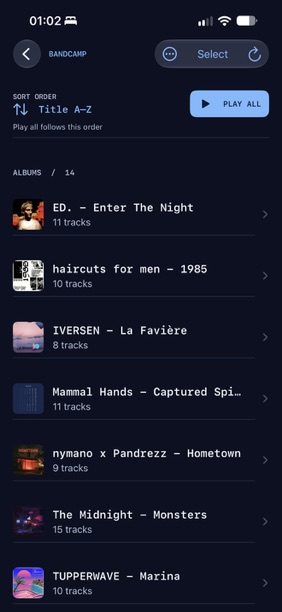
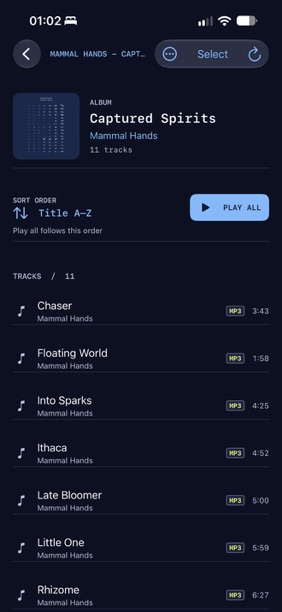
Added new files? Open the folder and pull down to rescan, or use its rescan action. Removing a folder from NITELOAD never deletes the files in Files.
03 / Player & queue
Make the next move.
The player keeps play/pause, previous and next track, shuffle, repeat, and the timeline in reach. Choose Spectrum, Scope, Orbit, or Off below the visualizer. The signal follows the audio and settles when playback pauses.
Tap QUEUE > to see what is coming. Tap a track to jump to it, use Edit to drag tracks into a new order, or swipe a track to remove it. CLEAR empties the queue. SAVE QUEUE turns the current order into a playlist.
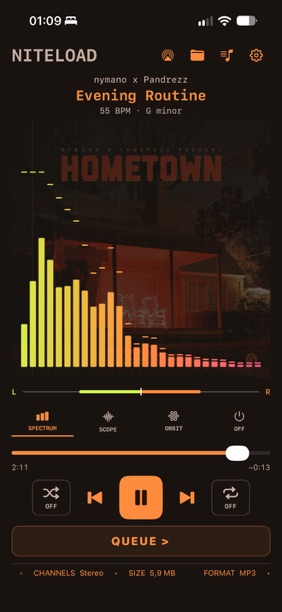
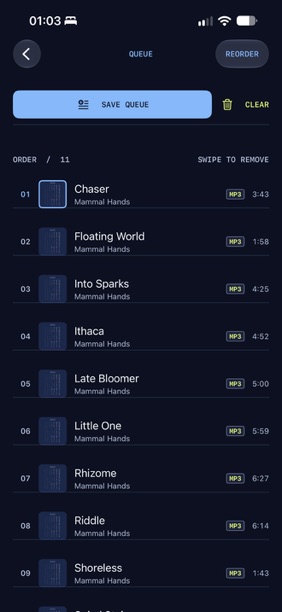
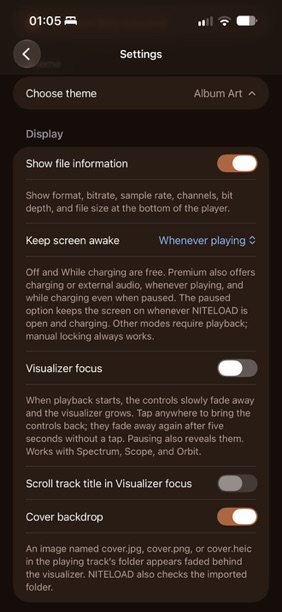
The player usually shows format and other file facts along the bottom. If you prefer a quieter screen, turn off Show file information in Settings.
04 / Playlists
Save a good run.
Open Playlists from the player header to see your saved lists. Tap + to create an empty playlist, or save a folder, selection, or current queue as a new one. Open a playlist to play it, rearrange its tracks with Edit, or remove tracks from that list.
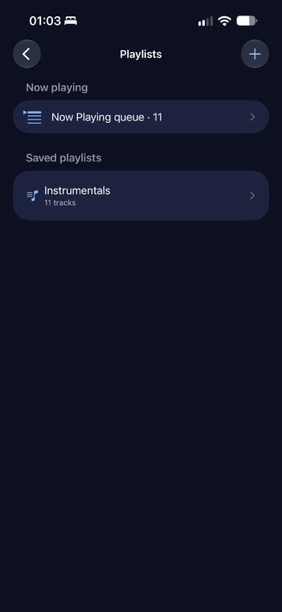
Playlists are kept on this device. If a source folder becomes unavailable, its playlist entries stay visible as missing tracks so you can reconnect the folder.
05 / iCloud & formats
A cloud icon means “give it a moment.”
Music stored only in iCloud Drive can appear before it has downloaded. Tap a track and NITELOAD asks Files to fetch it. A slow connection can leave the player preparing for a while; if you see Retry, check the download in Files and tap Retry. You can also download a folder in Files ahead of time for more reliable offline listening.
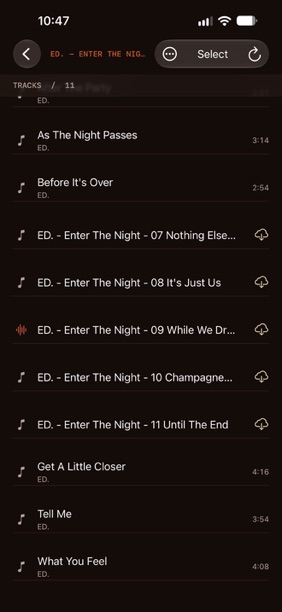
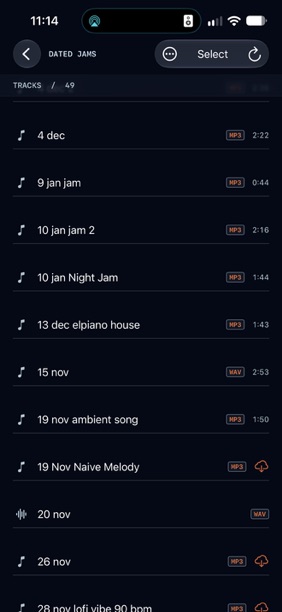
Supported audio includes MP3, AAC/M4A (including ALAC), AIFF, WAV, FLAC, and Ogg Vorbis. An .ogg file must actually contain Vorbis audio; another codec such as Opus will not play through NITELOAD’s Ogg decoder.
Open it in NITELOAD and tap Reconnect folder, then select the same folder in Files. Your saved playlists and queue are kept while you reconnect.
06 / Sound & screens
Listen here. Or fill the room.
Playback continues in the background, and you can use Lock Screen controls. The audio output button in the player header lets you choose an AirPlay speaker or another available output.
For NITELOAD’s dedicated big-screen view, open Screen Mirroring in iPhone Control Center and choose an Apple TV or a compatible Mac with AirPlay Receiver enabled. The external screen shows artwork, track details, progress, and a moving visualizer while the iPhone remains your controller. Audio-only AirPlay uses the system Now Playing view instead. This big-screen feature is in the current pre-release iPhone build.
You can also add a NITELOAD widget to the Home Screen or Lock Screen to see the current track and tap back into the player.
07 / Premium & settings
Set the mood.
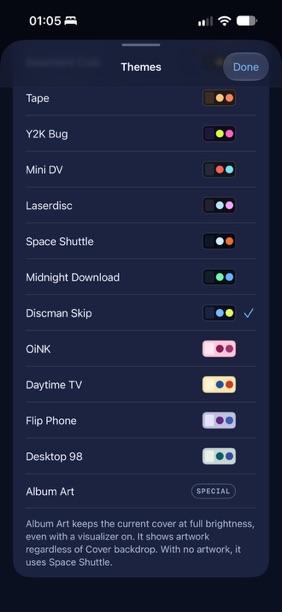
Lime on the Wire, all three visualizers, folders, queue, and playlists are free. A one-time Premium purchase unlocks more color themes and display options. Open Settings to preview themes or change how the player behaves.
Themes & artwork
Choose from nostalgic palettes or the Album Art theme, which takes its colors from the current cover. Cover backdrop puts artwork behind the visualizer; Album Art keeps it fully visible even when Cover backdrop is off.
Visualizer focus
While music plays, the controls fade and the visualizer grows. Tap to bring controls back for five seconds. You can also scroll the track title along the bottom while focus is active.
Music analysis
Turn on Show BPM and musical key for on-device estimates while a track plays. Some recordings may show no result, and the numbers can be wrong.
Keep screen awake
Free choices are Off and While charging. Premium adds While charging even when paused, Charging or external audio, and Whenever playing. The paused option keeps NITELOAD’s screen awake whenever the app is open and charging.
If you bought Premium and it appears locked, open Settings, tap UNLOCK PREMIUM, then Restore Purchases with the Apple Account that bought it. Private TestFlight builds may unlock Premium for feedback without testing the purchase flow.
08 / A little help
Still stuck?
The support page has quick answers about folders, iCloud, formats, and purchases. If something goes wrong, email hello@polarsignal.se with your device model, iOS or iPadOS version, audio format, and what happened. Please keep private music files out of the first message.